Brass Tacks · February 23, 2012
First you must enable RAID, before you can disable it.
Originally posted February 23, 2012 at 01:32 PM on brasstacksblog.typepad.com/brass-tacks/2012/02/first-you-must-enable-raid-before-you-can-disable-it.html
Recovered from the Internet Archive: post and comments, captured Sep 10, 2025 · archived page (PDF)
Before you jump into this post thinking a "storage guy" is in any way recommending that you disable RAID on your array, please understand that I’m talking about disabling "SW RAID" on a server ONLY!
I’m writing this as penance for spending far too much time on this problem. To make matters worse, in the end I had to rely on the help of a couple of colleagues to figure out what I was doing wrong. Thanks Tom McSweeney and Pat Mullaney!
While trying to install SLES11 SP1 onto a generic white box Intel based server, the installer prompted me to select a hard disk. The problem was, both of the devices I could select were “BIOS RAID” (see below). Now while I’m sure there are some people who would never think about installing an OS onto anything but a BIOS SW RAID disk, I’m not currently one of them, and as a result I wanted to disable this feature.
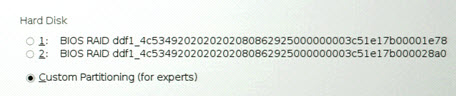
Seeing as how “BIOS” was in the name of the device, I figured the appropriate place to look for a “disable BIOS RAID” setting would be in the BIOS. So I power cycled the server and hit <F2> at the appropriate time.
After looking over each option in all of various tabs, I discovered the closest match was under Advanced/SATA mode. Upon seeing that it was set to ENHANCED, I said to myslef "well, that settings fine" and then proceeded to waste the better part of a day changing other settings, rebooting, cursing, etc. After each set of changes I would restart the install and in all cases the BIOS RAID devices remained.
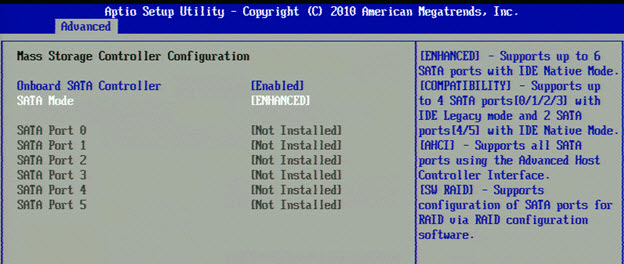
As I was preparing to do something drastic, I figured I would try one last thing and put out a “please help me before I jump out of the window” request to Pat and Tom. Eventually Tom came back with the answer that pointed me in the right direction. To make a long story short, you have to enable SW RAID in order for the BIOS RAID configuration utility to be displayed during boot. Once you are in the BIOS RAID configuration utility, you can delete the BIOS RAID devices and they will no longer be displayed when you attempt to install.
The step-by-step instructions are:
1. Set the SATA mode under the Advanced tab in the <F2> setup screen to SW RAID.
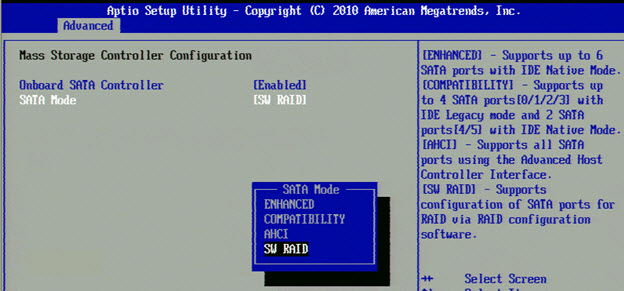
2. Save the changes to the BIOS and reboot.
3. Hit <CTRL-E> when prompted to enter the Embedded RAID configuration utility. BY THE WAY this option is NOT AVAILABLE when SW RAID is disabled. WHICH IS SO FRUSTRATING (but in hindsight completely understandable)
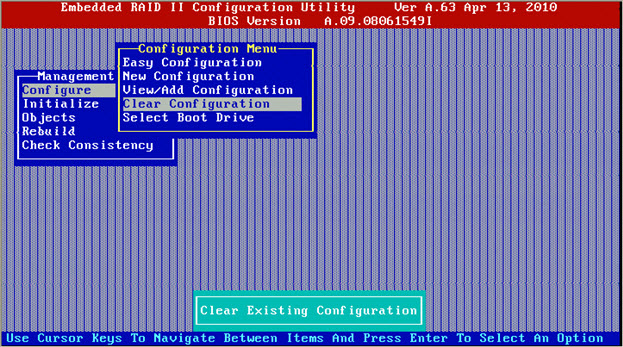
4. Once in the utility, select:
- “Configure”
- “Clear Configuration” (then confirm the change)
- Hit “esc” twice and then <CTRL><ALT><DEL> to save the configuration and reset.
5. Hit <F2> at the appropriate time to enter into the BIOS setup and then change the SATA mode back to ENHANCED (or whatever you want).
Thanks for reading!
Comments (2)
-
Tatersolid · 04/09/2012 at 09:05 AM
-
Erik Smith · 05/02/2012 at 07:58 PM
Hi, thanks for taking the time to comment and apologies for taking so long to approve and respond.
I agree this type of problem is very frustrating when encountered and I run into them too often...
Erik
The comments to this entry are closed.
This is an example of what I call "the lost art of sensible defaults". In my entire 20 year IT career, it's never been this bad. No matter what the system - be it a switch, router, storage array, commercial or open source OS, or white-box server BIOS - the defaults are very rarely usable or even rational. You either have to spend an inordinate amount of time disabling features or "hardening" things. Or spend the same amount of time doing the opposite, enabling every possible feature and sub-feature one at a time (I'm looking at you Win 2008 R2).
It's a massive, coordinated industry failure. Provides job security I suppose.